How to Use Ping Command Across Operating Systems
Learn how to use ping command on Windows, macOS, and Linux with clear steps, real output examples, and tips for interpreting reachability results accurately.
It's midnight, a customer says your site is down, and you open a terminal before you've even checked anything else. Your first move is probably ping. That's a reasonable instinct, but only if you know what the result can and can't prove. Learning how to use ping command properly means treating it as a fast reachability signal, then knowing exactly when to stop trusting it and test something deeper.
What Ping Actually Tests Before You Run It
Ping sends ICMP Echo requests to a host and waits for Echo replies. If replies come back, you know the host, or something answering for it, is reachable over the network and willing to respond to ICMP. The tool also reports round-trip time and packet loss, which tells you how long the exchange took and whether any replies went missing.

What ping does not prove
Ping doesn't test the application protocols your users depend on, such as HTTP, HTTPS, DNS, or an API endpoint. A host can answer ping perfectly while its web service is broken. The reverse happens too, because a host or firewall can ignore ICMP entirely while serving web traffic normally.
Practical rule: A failed ping does not prove a website is down, and a successful ping does not prove it's up.
Vendor-neutral system documentation describes ping as a test of host or network reachability that reports round-trip time and packet-loss statistics, rather than application availability, as shown in the Oracle ping manual page. That distinction shapes everything else in this guide. When you ping a hostname instead of an address, you're also testing name resolution first, and a failure there is a DNS problem, not a connectivity one, which is why pairing ping with a SiteAlive DNS lookup check is a useful habit. Keep one question in mind before you type anything. Ping answers whether a host replies to ICMP. It doesn't answer whether anyone can load your site.
Running Ping on Windows from Command Prompt and PowerShell
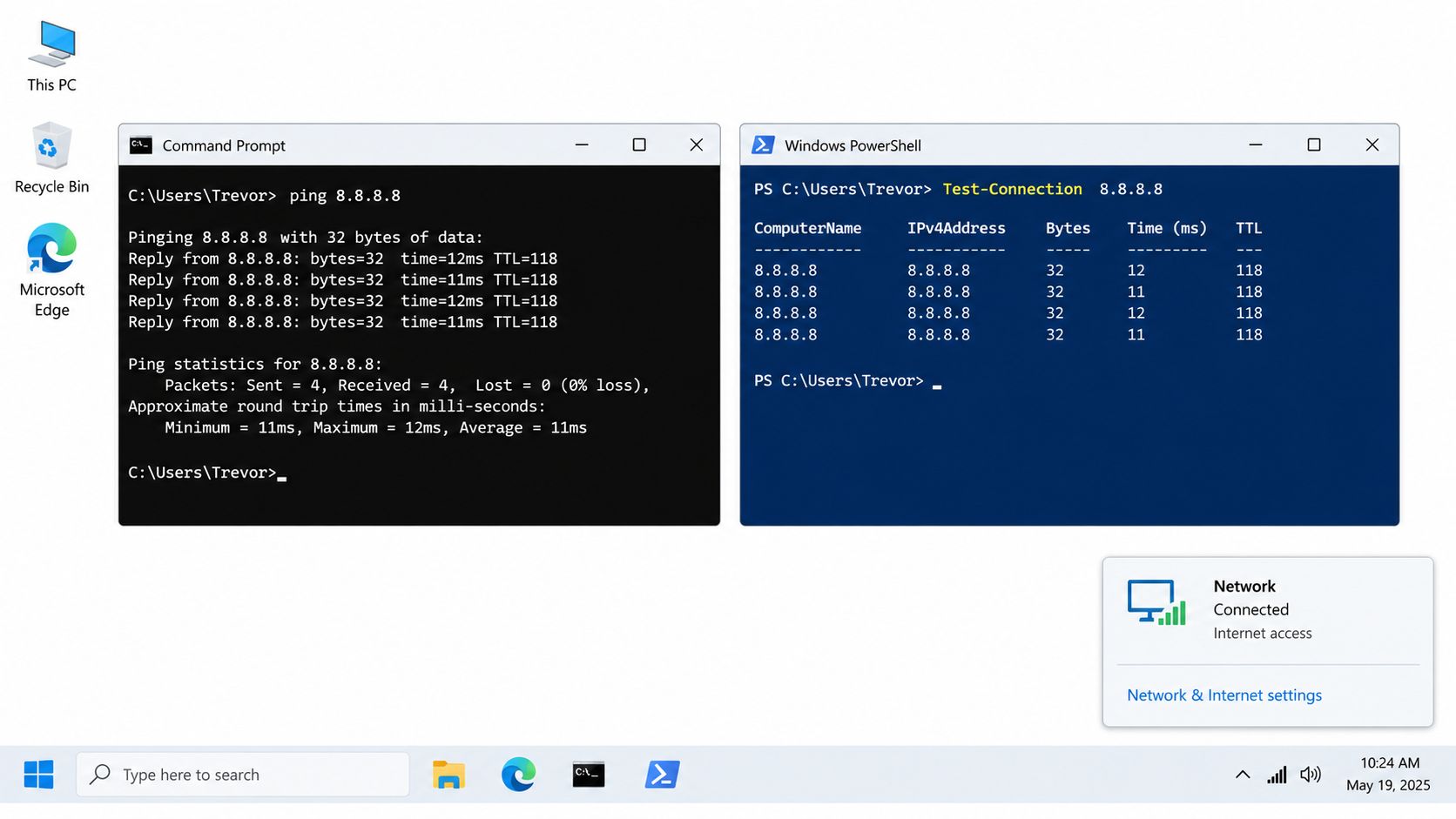
On Windows, open Command Prompt or PowerShell and run the basic form, ping host, replacing host with a hostname or address. Windows sends four Echo requests by default and then stops on its own. That default stop is the biggest behavioral difference from macOS and Linux, and it means a short output is normal, not a sign that something cut the test short.
Flags worth knowing on Windows
ping -t host: Pings continuously until you press Ctrl+C. Leave this running while you reconfigure a firewall or swap a cable, and you'll see the moment replies stop or return.ping -n 20 host: Sends a custom count instead of the default four. A longer run gives loss and latency figures more weight than a four-packet sample can.ping -l 512 host: Sets a larger payload size, useful when small packets pass but you suspect a path problem with bigger ones.ping -4 hostorping -6 host: Forces IPv4 or IPv6, which matters on dual-stack hosts.
Reading a reply line
A typical reply reads Reply from <address>: bytes=32 time=<value>ms TTL=<value>. Bytes is the payload size echoed back. Time is the round-trip latency for that single packet. TTL is the remaining time-to-live on the reply, which hints at how many hops it crossed. After the replies, Windows prints a summary with packets sent, received and lost, plus minimum, maximum and average round-trip times. If you see Request timed out instead, don't jump to an outage conclusion yet. That message means no reply arrived in time, and filtering sits alongside genuine failure as an explanation.
Running Ping on macOS and Linux Terminals
On macOS and Linux, open a terminal and run ping host. Unlike Windows, it keeps going until you stop it with Ctrl+C. Windows users regularly misread this, leave a ping running in a forgotten tab, or assume the command has hung. It hasn't. It's doing exactly what Unix ping has always done, and stopping it is what triggers the final statistics block.
Matching Windows behavior and going further
Run ping -c 4 host to send exactly four packets and stop, which mirrors the Windows default and makes cross-platform results easier to compare. On Linux, -s sets the packet size, so you can probe whether larger payloads behave differently from small ones. The -D option prints a timestamp before each line on versions that support it, which helps when you're correlating a dropout with a change you made at a known time.
Reply lines look different here. You'll see a sequence number as icmp_seq, the TTL, and the round-trip time for each packet. When you stop the run, the summary reports packets transmitted and received, packet loss, and a min/avg/max/stddev line on macOS, typically shown as min/avg/max/mdev on Linux. That spread figure is useful, because a tight cluster of times tells a different story from wildly scattered ones.
One platform trap deserves a mention. The timeout flag -W has changed meaning and availability over time, and macOS ships a BSD-derived ping while most Linux distributions use the iputils version. Flags you memorized on one system may not exist, or may expect different units, on the other. Checking man ping on the machine in front of you takes seconds and prevents silent misreads.
Forcing IPv4 vs IPv6 and Reading Dual-Stack Results
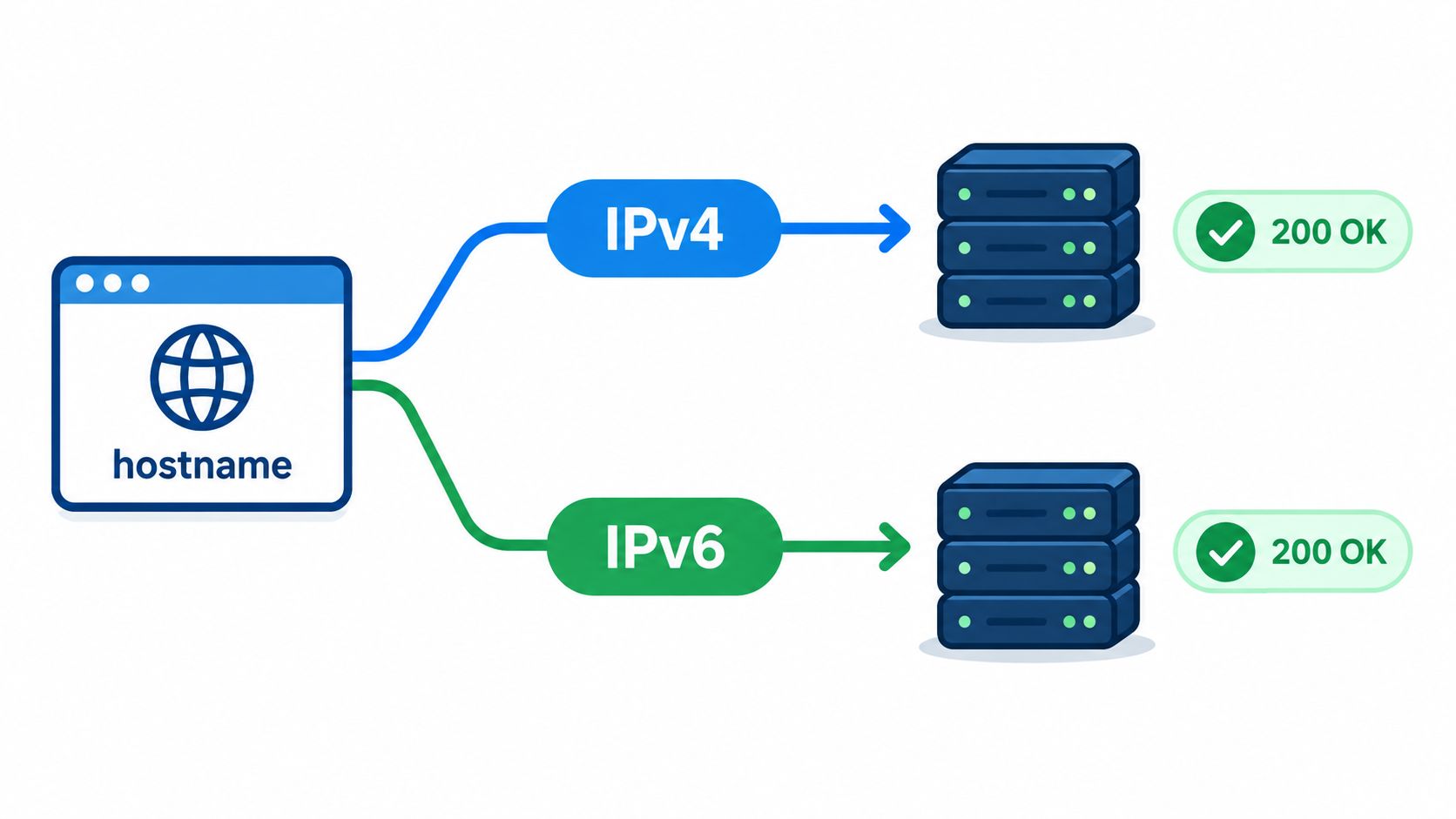
A default ping can lie by omission. Many hostnames resolve to both an IPv4 and an IPv6 address, and your operating system picks one family for you. If the family it picked works and the other is broken, your test looks clean while a subset of users can't connect at all. That's dual-stack asymmetry, and a single default ping hides it completely.
Test each family on purpose
Run ping -4 host and ping -6 host separately on platforms that support those switches, then compare loss and latency side by side. If you're unsure which address your own machine is using, the walkthrough in the Nerds 2 You Edmonton IP guide covers finding it on common systems. Inconsistent results between families usually point to different routes, different firewall policies, or broken IPv6 connectivity, not random instability.
IPv6 also changes the protocol underneath. ICMPv6 carries ping, and its control messages are an integral part of IPv6 rather than an optional add-on, as set out in the IETF specification for ICMPv6. Blocking it carelessly can damage real connectivity, not just diagnostics. Payload size matters more here too, since routers in the path can't fragment IPv6 packets, so test larger payloads against the failing family and follow up with traceroute or tracert to see where that family's path breaks.
Interpreting Latency, TTL, and Packet Loss in the Output
Numbers in ping output only help if you compare them against something. A nearby host on a healthy path returns low, consistent round-trip times. A host on another continent returns higher times, and that's geography, not trouble. What should worry you is a result that's abnormal for that specific target, which is why building a baseline matters, and these network latency baselining tips are worth reading if you don't have one yet.
Latency, jitter, and TTL
Watch the spread across samples as closely as the average. Steady times suggest a stable path, while times that swing sharply from packet to packet, often called jitter, point to congestion or an unstable link even when the average looks acceptable. A large jump above a host's usual latency is a signal to investigate, not a verdict on its own.
A single high number is noise. A pattern across many packets is evidence.
TTL is the least actionable field for most checks. Different operating systems start replies with different initial TTL values, and each hop decrements the count, so the value you see vaguely reflects path length and the responding system's defaults. People sometimes use it for rough operating system fingerprinting, but treat that as a curiosity. A TTL that changes between runs can hint the path changed, though it's weak evidence on its own.
Packet loss needs context
- Occasional single loss: Often noise, especially on a long run. Note it and keep testing.
- Sustained partial loss: Suggests congestion, a struggling link, or a device shedding ICMP under load.
- Total loss: Doesn't prove the host is down, since intermediate devices may discard or rate-limit ICMP while forwarding application traffic normally.
Load balancing, congestion, and ICMP filtering can all explain lost replies, so write down the target, address family, count, loss, and latency spread before concluding anything. That discipline is the same thinking behind broader availability checks, and the background in SiteAlive's guide to monitoring concepts connects these one-off tests to ongoing observation.
When Ping Is Not Enough and What to Run Next
Ping answers one narrow question well. The moment you need to know whether users can reach a service, you've outgrown it. A stronger diagnostic workflow compares multiple layers in order, and each layer eliminates a whole class of explanations.
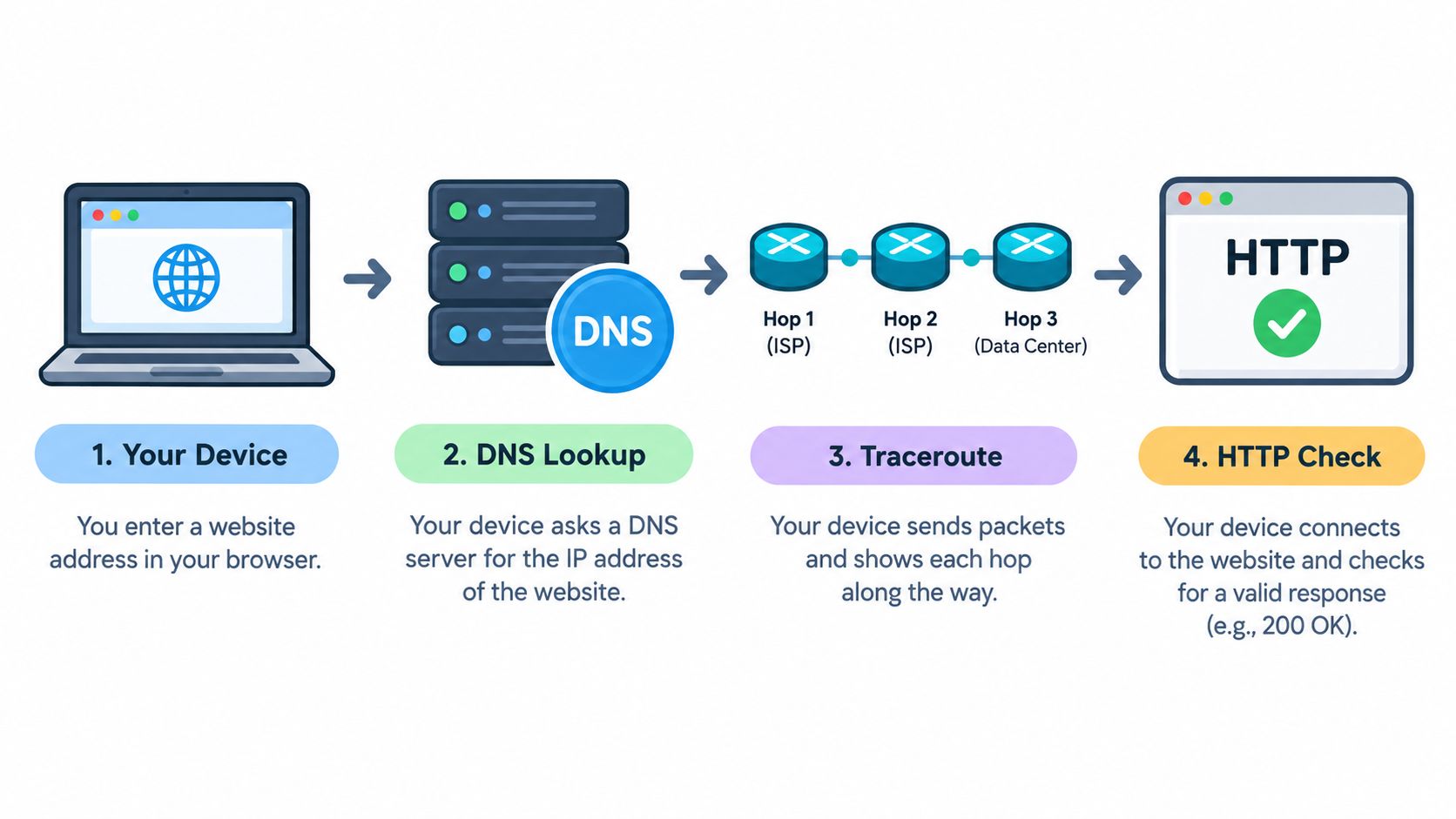
A layered workflow that settles arguments
- Resolve the hostname. Confirm DNS returns the addresses you expect. If resolution fails, stop here, because nothing downstream is meaningful yet.
- Ping each address family. Run IPv4 and IPv6 separately so a broken family can't hide behind a healthy one.
- Run traceroute or tracert. This shows the path hop by hop and where replies stop, separating a local problem from one deep in transit.
- Make a real HTTP request. Check the status code, TLS handshake, redirects, and response time. This is the step that proves users can use the service.
If ping fails but the HTTP check succeeds, ICMP is being filtered and your site is fine. If ping succeeds but HTTP fails, the host is alive and the application isn't, and checking whether the service port accepts connections, for example with a SiteAlive port scan, narrows it further. Larger organizations formalize this layering across their infrastructure, and the enterprise networking solutions overview from MR2 Solutions shows how that thinking scales. For ongoing coverage, SiteAlive combines uptime monitoring with ping, traceroute, and HTTP header tools, so these checks run continuously instead of once during a panic.
Quick Reference and Reusable Ping Checklist
Keep this table near your terminal. It covers the flags you'll reach for most, across all three platforms.
| Purpose | Windows | macOS / Linux |
|---|---|---|
| Set packet count | ping -n 20 host | ping -c 20 host |
| Ping continuously | ping -t host | ping host (Ctrl+C to stop) |
| Set payload size | ping -l 512 host | ping -s 512 host |
| Force IPv4 | ping -4 host | ping -4 host where supported |
| Force IPv6 | ping -6 host | ping -6 host where supported |
The habit to keep
When the next outage report lands, work in this order. Resolve the hostname first, then ping IPv4 and IPv6 separately with a count large enough to mean something. Run traceroute against whichever family fails, then finish with an HTTP check that mirrors what a user experiences. Record the target, family, loss, and latency spread as you go, so the next person on call inherits evidence instead of guesses. Ping earns its place at the start of that sequence. It just never gets the final word.
Next time ping gives you a timeout and you're not sure whether it's filtering or a real outage, run the layered check from an outside vantage point with SiteAlive - are your website down?, which pairs ping and traceroute with uptime monitoring and HTTP checks so you can see whether users can reach your service. Set up continuous monitoring once, and you'll have incident history and alerts waiting for you instead of starting from a blank terminal at midnight.